
Keyboard connection port location:Where is the keyboard connection port typically located on a desktop computer?
Q: Where is the keyboard connection port typically located on a desktop computer?
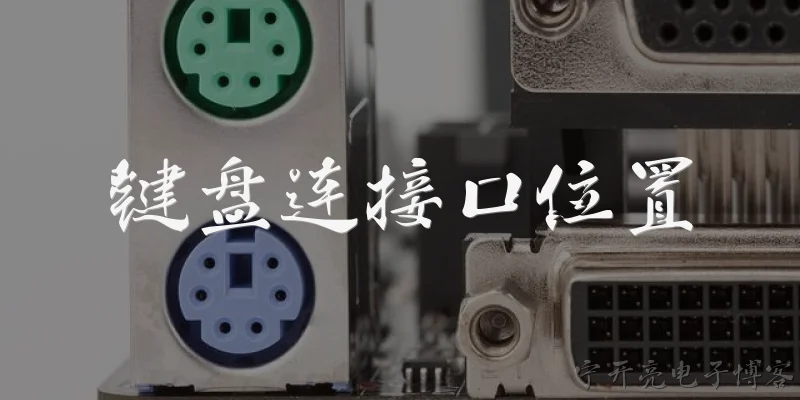
A: On a desktop computer, the keyboard connection port is usually found on the back panel of the system unit, known as the I/O panel. Older keyboards use a purple PS/2 port, while modern ones use USB ports. These USB ports may be located at the rear, front, or top of the case for easy access. Some high-end motherboards also include USB-C ports. If you have a wireless keyboard, the USB receiver often plugs into any available USB port, and its placement can affect signal strength, so front ports are sometimes recommended for better reception.
Q: What is the location of the keyboard connection port on most laptops?
A: On laptops, the keyboard is built-in and connects internally via a ribbon cable to the motherboard, so there is no external port for the main keyboard. However, if you want to connect an external keyboard, you would use one of the laptop's USB ports, which are typically located on the sides (left or right) or sometimes on the back. USB-C ports are increasingly common on modern laptops and can also be used for keyboard connection. The exact placement varies by model, but side placement is most typical for easy access.
Q: How can I find the keyboard connection port on my computer if I'm unsure?
A: To locate the keyboard connection port, first check the back panel of your desktop tower. Look for a purple round port (PS/2) or rectangular USB ports. If you have a laptop, external keyboards connect via USB ports on the sides. You can also consult your computer's manual or look for labels or icons near the ports. Another method is to check the cable of your keyboard: follow it from the keyboard to the computer to see where it plugs in. For wireless keyboards, check where the USB receiver is plugged in.
Q: Are keyboard connection ports different for wired and wireless keyboards?
A: Yes, wired keyboards connect directly to a physical port on the computer, such as PS/2 or USB. The port location is where you plug in the cable. Wireless keyboards, on the other hand, use a USB receiver that plugs into a USB port, or they may connect via Bluetooth, requiring no physical port. For Bluetooth, the connection is internal, so there is no external port location. The receiver for wireless keyboards is often placed in a USB port, and its location can impact wireless performance, so using a front USB port may reduce interference.
Q: What should I do if my keyboard connection port is not working?
A: If your keyboard connection port is not working, first try a different port. If using USB, test another USB port to see if the issue is with the port or the keyboard. For PS/2, ensure the computer is off before plugging in, as PS/2 is not hot-swappable. If the port is damaged, you may need to use an alternative port or a USB-to-PS/2 adapter. For laptops, if a USB port fails, you can use another port or a USB hub. If all ports fail, the keyboard may be faulty, or there could be a driver issue requiring troubleshooting.
Words of experience
Common scenarios of "Keyboard connection port location"
【User】 Hey, I just got a new keyboard but I can't find where to plug it in. Can you help?
【Assistant】 Of course! What kind of keyboard is it? Wired or wireless?
【User】 It's a wired one. It has a USB cable.
【Assistant】 Okay. On most computers, the USB ports are located on the back of the desktop tower or on the sides of a laptop.
【User】 I have a desktop. I see some USB ports on the back, but they're all taken. Are there any other places?
【Assistant】 Some desktops also have USB ports on the front panel. Check there.
【User】 Oh, I see two on the front. Should I plug it into any specific one?
【Assistant】 Any USB port should work for a keyboard. Just plug it in and your computer should recognize it automatically.
【User】 I plugged it into the front, but it's not working. The keyboard has no lights.
【Assistant】 Try a different USB port. Sometimes a port might be faulty or not providing enough power.
【User】 I tried another port on the front, still nothing. Could it be the cable?
【Assistant】 Possibly. Do you have another computer to test the keyboard on?
【User】 Yes, I have a laptop. Let me try it there.
【Assistant】 Great. If it works on the laptop, then the issue is with your desktop's USB ports.
【User】 It works on the laptop! So what's wrong with my desktop?
【Assistant】 Maybe the front USB ports are not connected to the motherboard internally. Have you tried the back ports again? You might need to unplug something temporarily.
【User】 I'll try the back ports. I can unplug my printer for now.
【Assistant】 Good idea. Let me know if it works.
【User】 It works! So the front ports are the problem. How can I fix them?
【Assistant】 You might need to open your computer case and check if the front USB header is properly connected to the motherboard. If you're not comfortable doing that, you can use a USB hub or extension cable to use the back ports more easily.